Keep the editor visible while its preview loads
Place React Suspense boundaries around a meaningful waiting area. A real editor study shows what stays usable while optional preview code loads.
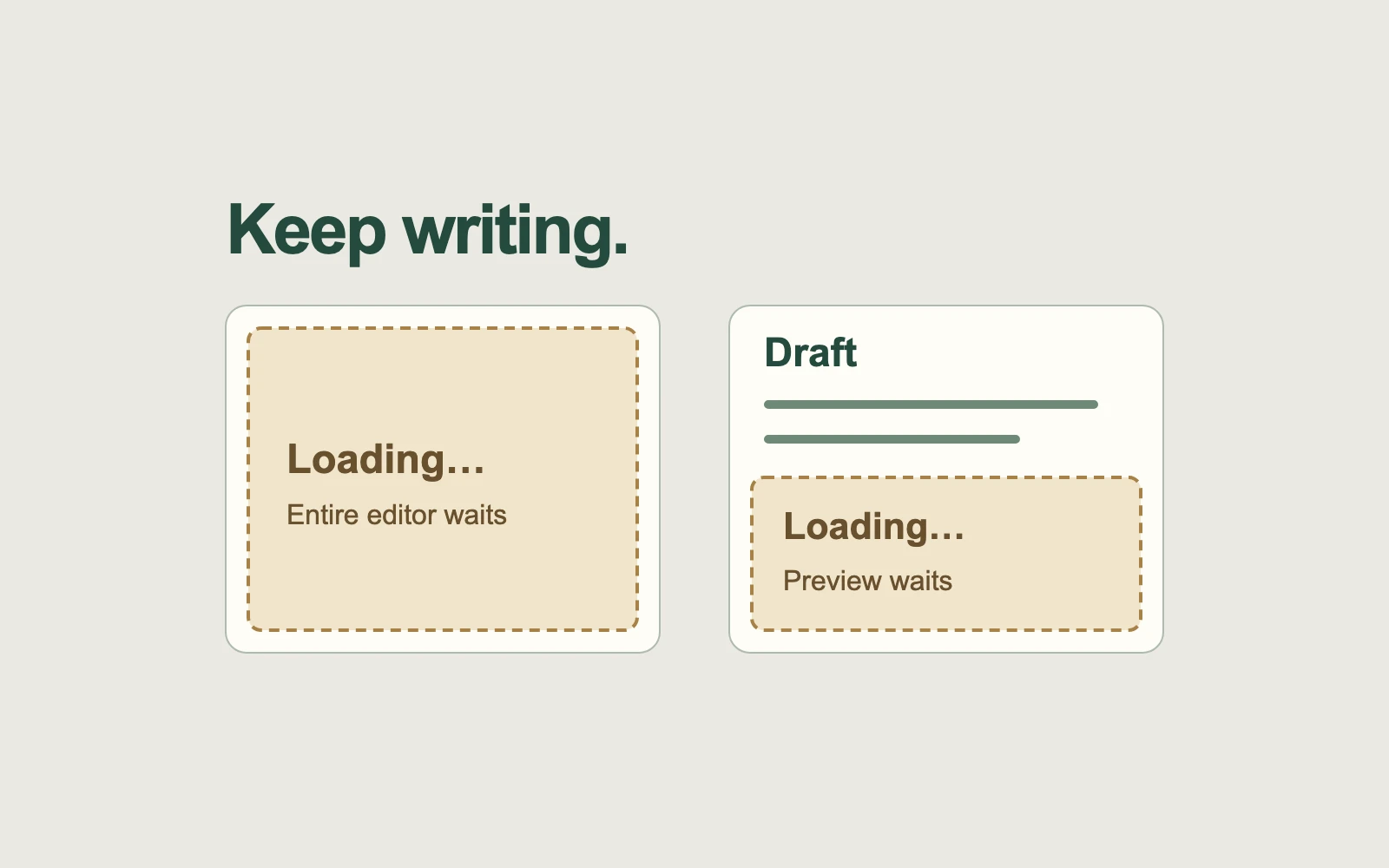
A writer opens a preview to check a note. The preview needs another JavaScript module, so the interface shows a loading message. The useful design question is what remains available around that message: can the writer keep editing, or does opening an optional panel temporarily remove the whole workspace?
For an editor with an independent preview, keep the draft and its controls outside the preview’s loading boundary. That gives the person somewhere useful to continue. A grouped reveal can still suit a screen whose pieces must arrive together; choose the boundary from the task and the relationship between those pieces.
One held module, two visible outcomes
We built a small React note editor with the same draft, button and optional preview in two arrangements. A test-controlled Promise holds the lazy preview module until we release it. This makes the waiting state inspectable without pretending to measure a real connection or a product’s loading speed.
In arrangement A, the Suspense boundary surrounds the editor and preview. Opening the preview replaces that entire area with the fallback. In arrangement B, it surrounds only the preview content. We can type a new sentence while the preview is still waiting. When released, the preview displays that updated sentence.
 A — Actual Chromium capture of our original study at 390 CSS pixels, captured at 2× resolution. The preview gate is still closed; the broad fallback hides the draft area.
 B — The same controlled wait with a preview-only boundary. We changed the draft to “Still writing while the preview waits.” before releasing the module. These are browser screenshots, not generated UI.
The distinction is visibility and continued use. In A, the previously entered note returned after the module was released. This demonstration does not show the broad boundary deleting the draft. It shows that a control can become unavailable during a wait even when its value survives.
Observed in the original fixture, not a performance benchmark| Check | Whole editor | Preview only |
|---|
| While the module is held | Draft field hidden | Draft field visible and editable |
| After release | Earlier draft returns | Preview shows the edit made during the wait |
| Coverage | Chromium, Firefox, WebKit; 900 and 390 CSS px | Same engines and widths |
Make the boundary match the waiting area
React’s Suspense reference explains that the closest boundary supplies the fallback when a child suspends. Components within that boundary reveal as a group. The position of the wrapper therefore changes the visible loading experience, even when the preview module itself is unchanged.
Choose the reveal that fits the task
Keep the group together
Useful when partial content would be confusing.
- A single fallback can stand in for one coherent unit.
- Decide whether its controls should disappear with it.
- Review the loading composition as carefully as the finished screen.
Keep the task available
Useful for an optional preview alongside ongoing work.
- Leave the draft and launch control outside the preview boundary.
- Keep the preview heading in place so the waiting region has context.
- Let the person continue editing and check what appears after loading.
Use lazy at module scope for the component import; the module must provide a default component export. The following placement excerpt keeps the text input outside Suspense. Preview is your own component, and its note prop should render the current draft. Add your application’s Error Boundary around the preview before shipping.
import { lazy, Suspense, useState } from 'react';

const Preview = lazy(() => import('./Preview.jsx'));

export default function Editor() {
  const [note, setNote] = useState('');
  const [show, setShow] = useState(false);
  return <>
    <label htmlFor="note">Your draft</label>
    <textarea id="note" value={note}
      onChange={e => setNote(e.target.value)} />
    <button onClick={() => setShow(true)}>Open preview</button>
    <section aria-label="Preview">
      <h2>Preview</h2>
      {show && <Suspense fallback={
        <p role="status">Loading preview…</p>
      }>
        <Preview note={note} />
      </Suspense>}
    </section>
  </>;
}
This example waits for component code. A fetch started inside an Effect does not automatically activate Suspense; React documents that limitation explicitly. Follow your framework’s supported data-loading approach when data is the dependency. Moving a boundary is not a substitute for defining that loading behavior.
Give waiting and failure different treatments
Use a specific message such as “Loading preview…” so the person can identify what is pending. W3C’s status-message guidance describes making waiting information available to assistive technology without moving focus to it. The excerpt supplies a status role; check actual announcements with the browser and screen reader combinations you support. Our review checks markup and keyboard behavior, not spoken output.
A rejected lazy load also needs a failure state. React’s lazy documentation routes that rejection to an Error Boundary, whose job is described in the error handling reference. In a separate rejection run, our preview boundary displayed an error and left the text field editable in all three engines. Decide how recovery preserves the person’s writing; a page reload should not be offered casually when an unsaved draft lives only in memory.
Review the wait before approving the screen
A practical loading review
Start with a cold preview
Open a fresh page and hold the first preview load. React caches the lazy loader’s Promise and result, so reopening an already loaded preview may not reproduce the wait.
Try the surrounding task
Open the preview with the keyboard, then try to edit the note. Record which fields remain visible and usable at desktop and phone widths.
Release, then reject
Release the held module and check the rendered draft. In a separate fresh run, reject it and check that the failure state leaves a useful path forward.
Keep the evidence specific
Save waiting and loaded screenshots, the tested viewport, and the result of the input check. Label artificial delays as test conditions and keep speed claims out of this review.
For a design handoff, include the loading state beside the completed preview and point to the controls that must stay usable. That small addition gives an implementer—or an AI coding agent—a concrete acceptance condition: the writer can continue the draft while the optional preview is waiting.
Back to the LOOKFILE blog